
Using IES photometric data in 3D applications like 3D Studio Max is a must for any architectural visualization artist. Aside from saving time and the accuracy that comes from using lighting data based on the actual fixtures in your lighting plan, it just looks better! Even when specific fixtures are an unknown I would recommend using IES data with your photometric or VRay IES lights depending on what engine you’re using. I should also mention Maxwell supports IES data.
So IES files and the data they contain are great! Problem is they are a pain to sift through. Unless you have the datasheet for a given lamp you have no way of knowing what the light cast will look like until you get it into Max. When using photometric lights you do get a little preview of the light profile but it’s not a great way to browse through your pile of IES files. With VrayIES lights you don’t even get that. With names like “ERCO_34096023_V04_1xLED_20W__neutral_white.IES” you may have trouble guessing what this light is or finding it in the product catalog.
Now that you are thoroughly annoyed with guessing how your IES data will render check this out. IESViewer, a full featured photometric file viewer, is here to make your life with IES data much, much easier! Developed by Andrey Legotin, IESViewer allows you to browse through loads of IES files in the best way possible, with light cast preview renders! There are numerous other ways you can browse with standard data profiles etc but the rendered thumbnail is my favorite. This is especially useful when you need a specific look but don’t want to hunt around for the right light fixture in a catalog and then try to dig for the IES data.

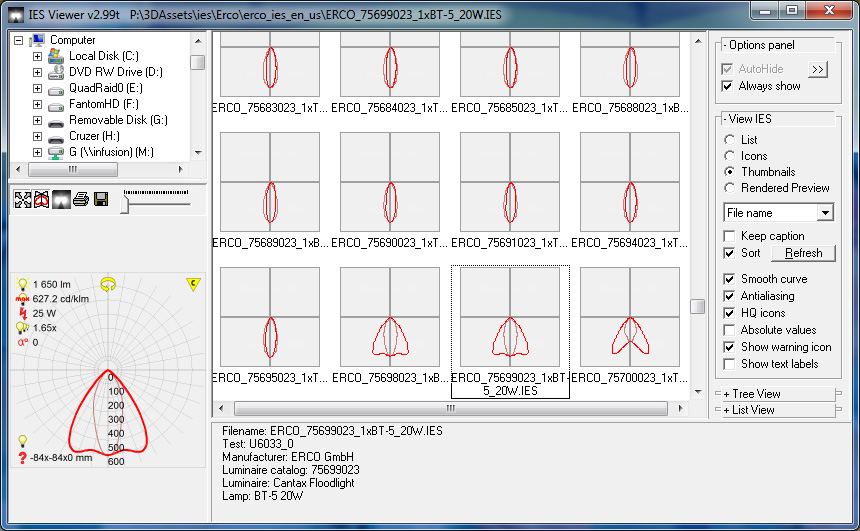
Now this is all pretty cool but what’s even cooler is that IESviewer can be integrated into 3D studio Max by installing a script available from the IESViewer GUI. This allows you to select a photometric light within Max and hit the “Set IES to Photometric” light button and BAM, your IES files is loaded into the light! The time savings can be huge if you have many different types of fixtures in your render. Now if you’re using VrayIES lights then the pushbutton option is not available but you can simply right-click the IES file you need, select “copy file name” from the dropdown menu and then paste this path into your VrayIES light’s source path. BAM, back in business!

You can download IESViewer HERE.
Tagged: 3D, 3D Studio Max, Architectural Visualization, IES, lighting, Maxwell Render, Mental Ray, vray